Since it’s creation in April 2011, SnapChat has been fast growing in terms of users. It is a multimedia messaging app developed by Snap Inc. One of its very unique features is that pictures and messages are usually only available for a short time before they become inaccessible to their recipients.
Today, we discuss how to add and delete friends on SnapChat.
Adding Friends.
This can be done in very many ways. We shall discuss six of those ways here.
By Username
Find out your friend’s username. The main way people add each other is by sharing usernames. This allows you to add people that aren’t in your phone’s contact list. There is no way to add someone using an email address or real name. You’ll need to ask the person what their username is.
There are two names on SnapChat, Display name and Username. The Display name is the name that appears first to other people, and can be changed, but is not used to add someone. The Username is the user’s permanent account name. You’ll need the Username to add someone.
Swipe down anywhere on the Snapchat camera screen. You’ll see your Snap code, display name, username, and score.
Tap “Add Friends.” This will open the Add Friends menu.
Tap “Add by Username.” This will open the user search.
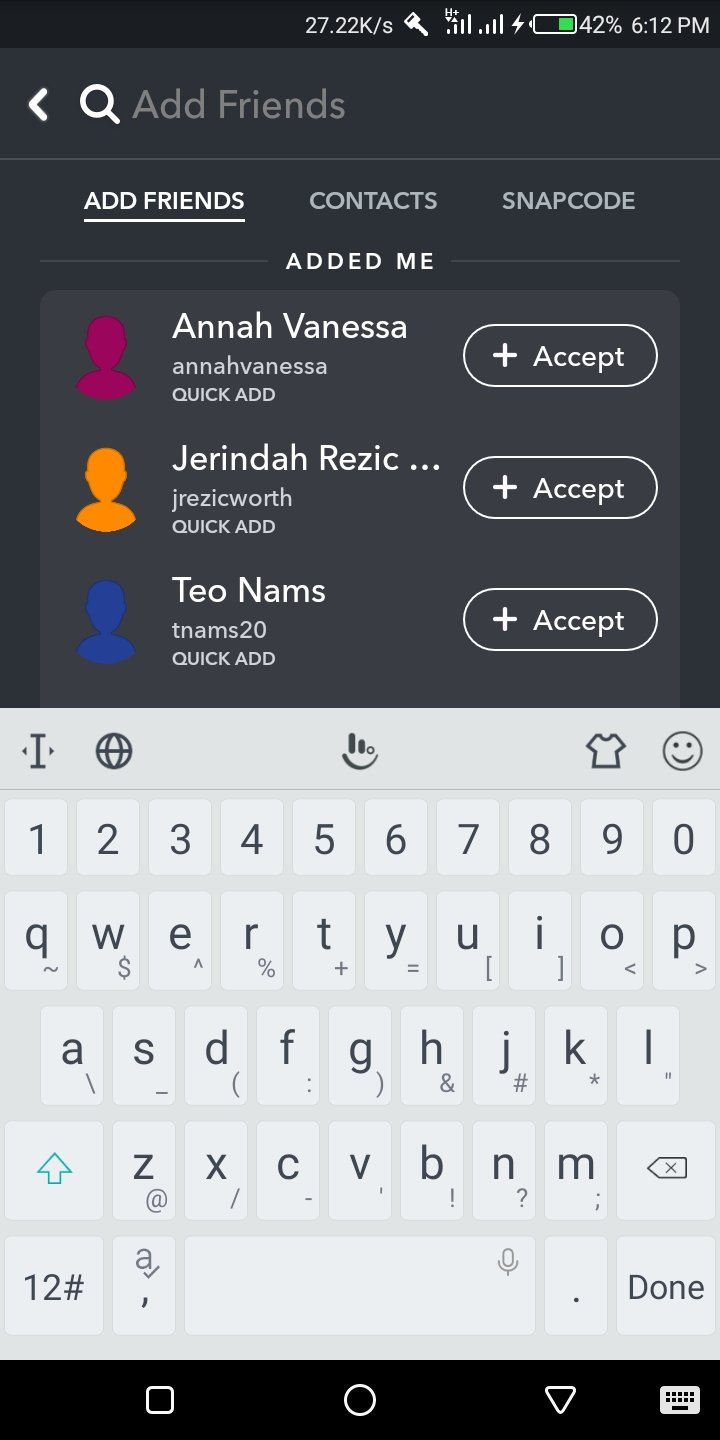
Type the full username of the person you want to add. You cannot enter a partial username and have Snap chat finish it for you. You must type the entire username to find the person. You can only search by Snap chat username; you cannot search by real name, phone number, email address, or any other name or address.
If you want to add someone using a phone number, add them to your phone’s address book first then follow the steps in the previous section.
Tap the “+Add” button next to the user.This will add the person to your friends list. This button will only appear if you’ve typed the person’s entire username correctly.
Wait to be added back. The other person may need to add you back before you can start talking to each other and send Snaps back and forth. This depends on the other person’s privacy settings.
By Snapchat URL
Get a link to your friend’s Snapchat profile. Snap chat users can now create a link that will open their Snap chat profile in the Snapchat app when you tap on it. Have your friend send you the link via text or email so that you can tap it.
The link will look like https://www.snapchat.com/add/username.
Tap the link to open it. You’ll need to open the link on your phone that has Snap chat installed. When you tap the link, a Snap chat page will open in your phone’s browser.
Tap “Open Snapchat.” This will launch the Snap chat app. You may be prompted to select the Snapchat app from a list of apps before it opens.
Tap “Add Friend” in Snap chat. This will add the person to your Snapchat friends list. The person will be notified that you’ve added them, and they’ll need to add you back in order to send Snaps or see their Story.
Share your own Snapchat URL. You can send your Snapchat URL to your friends from your profile screen:
Open the Snapchat profile screen by swiping down on the Snapchat camera screen.
Tap “Add Friends” and then “Share Username.”
Select how you want to send the link. You can use your messaging app, or add it to an email. You can also post it to your social media apps by selecting the app you want from the list.
By Contacts from Your Phone
Swipe down anywhere on the Snapchat camera screen. This will open your Snap chat profile screen, where you’ll see your Snap code.
When you use this method, Snapchat will scan your phone’s contact list and find people that have their phone number associated with their Snap chat account. Not everyone who uses Snapchat has a phone number associated with their account. The other users must have enabled this feature on their own Snap chat accounts in order to be matched on your list.
Tap “My Friends” at the bottom of the screen. This will open a new screen with your current Snap chat friends.
Tap the “Contacts” tab. This will display a list of people in your phone’s contacts list that have their phone number associated with their Snapchat account.
Give Snapchat access to your device’s contacts (if prompted). When you open this tab for the first time, you may be prompted by Snap chat to allow access to your device’s contacts. This will allow Snap chat to check which of your contacts have their phone numbers associated with Snap chat profiles.
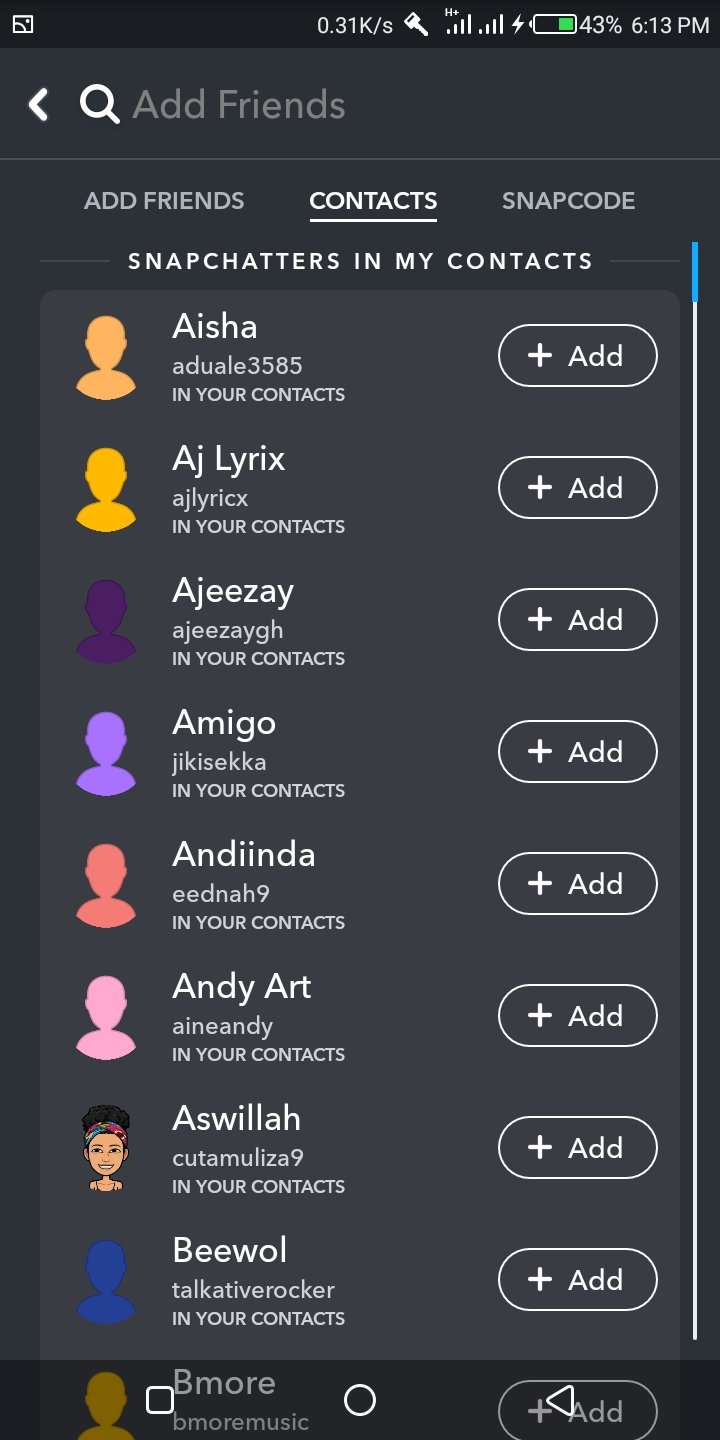
Scroll through the list and tap “+” or “+Add” to add people to your friends list. The person you add will be added to your friends list, and notified that you’ve added them. They’ll then be able to add you back if they want.[2]
Snapchat only matches people based on phone numbers. It does not match by name, email address, or other social media accounts like Twitter or Facebook.
Scroll to the bottom of the list to see contacts that don’t have Snap chat. These are all of your contacts that either don’t have Snapchat, don’t have their phone number associated with their Snap chat account, or don’t allow phone number matching for their Snapchat account.
You can tap “+Invite” to send them a text with a link to the Snap chat app.
Wait to get added back. You may need to be added back by the person you added to your friends list before you can start communicating. This depends on the other person’s privacy settings. Your messages will be stuck “Pending” until you are added back.
By using a Snapcode
Line up a Snapcode in your Snap chat camera. You can scan a Snapcode by simply pointing your Snapchat camera at it.
Your snap code (a unique display of dots) is the yellow box surrounding your profile picture in the shape of a ghost. Simply tap the Snapchat ghost at the top of your screen to pull up your personal snap code.
Press and hold on the code in your Snapchat camera screen. This will scan the code and show the user.
Tap “Add Friend” after scanning. This will add the person to your friends list.
Wait to be added back. You may need to be added back by the other person before you can start sending Snaps back and forth. This may not be necessary if the person allows Snaps from anyone.
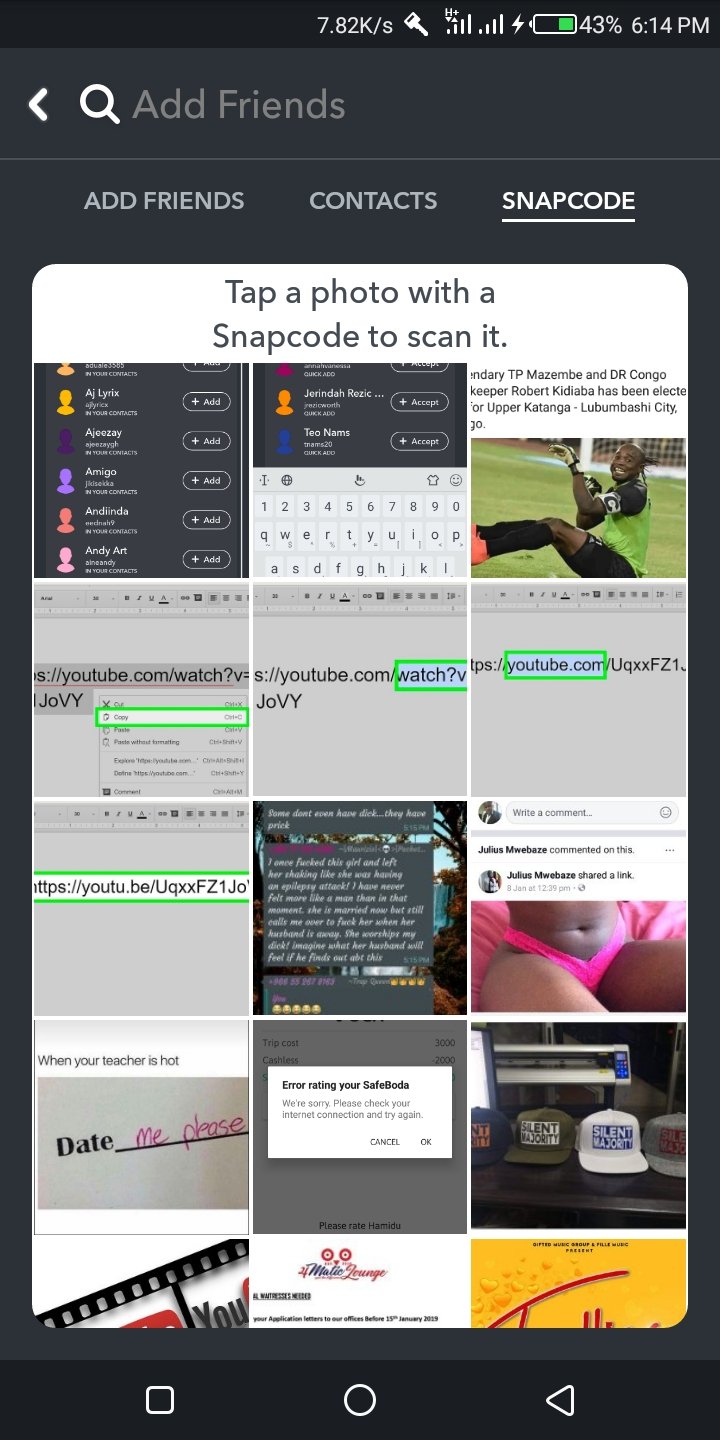
Save a picture to your device that contains a Snapcode. Snapchat can scan the pictures on your device and detect any that have a Snapcode on it.
Once the picture has been saved to your device or taken with your device’s camera, swipe down anywhere on the screen in the Snapchat app.
Select “Add Friends” and then tap “Add by Snapcode.” You may be prompted to allow Snapchat to access your device’s photo storage.
Tap the picture that contains the Snapcode. Snapchat will scan the code and give you the “Add Friend” prompt.
Related Article: With Snap kit, developers can integrate Snap chat features into their apps
Adding a Friend in the Same Room
Swipe down anywhere on the Snapchat camera screen. This will display your Snapcode and profile information.
Tap “Add Friends.” This will display the Add Friends menu.
Tap “Add Nearby.” Your device will wait to detect other nearby devices.
Instruct your friend to open the same screen on his or her device. Have your friend navigate to the same “Add Nearby” screen. You’ll see their username appear in your Add Nearby screen.
Tap “+” or “+Add” next to your friend’s username. This will add them to your friends list. Have your friend do the same so that you can both start sending and receiving Snaps from each other.
Adding Back a Friend
Swipe down anywhere on the Snapchat camera screen. This will show your Snapcode and your profile.
Tap “Added Me.” This will display users who have recently added you to their own friends list. You’ll be notified both for people that you already added to your own friends list, and people that you haven’t added before.
These notifications disappear after leaving this screen, so if you don’t add someone back now, you’ll need to look them up later.
Tap “+Add” next to the person that added you. This will add them to your own friends list.
How to Delete Friends on Snapchat
Deleting a Snapchat friend will prevent them from seeing your non-public snaps, while blocking a friend will prevent them from being able to see any of your content.
Open Snapchat. Tap the Snapchat app icon, which resembles a white ghost on a yellow background. This will open the Snapchat camera view if you’re logged in.
If you aren’t logged in, tap LOG IN and enter your email address and password.
Open the “Chat” page. Tap the speech bubble-shaped icon in the bottom-left corner of the screen, or swipe from left to right across the screen.
Tap the “New Chat” icon. It’s a speech bubble-shaped icon in the top-right corner of the screen. Doing so brings up a list of your Snapchat friends.
Find a friend to delete. Scroll down until you find the person whom you want to remove from your Snapchat Friends list.
You can also type the person’s name into the “To” text box at the top of the screen to look them up.
Long-press the person’s name. After about a second, a pop-up menu will appear.
Tap Settings. It’s at the bottom of the pop-up menu. Doing so opens a new menu.
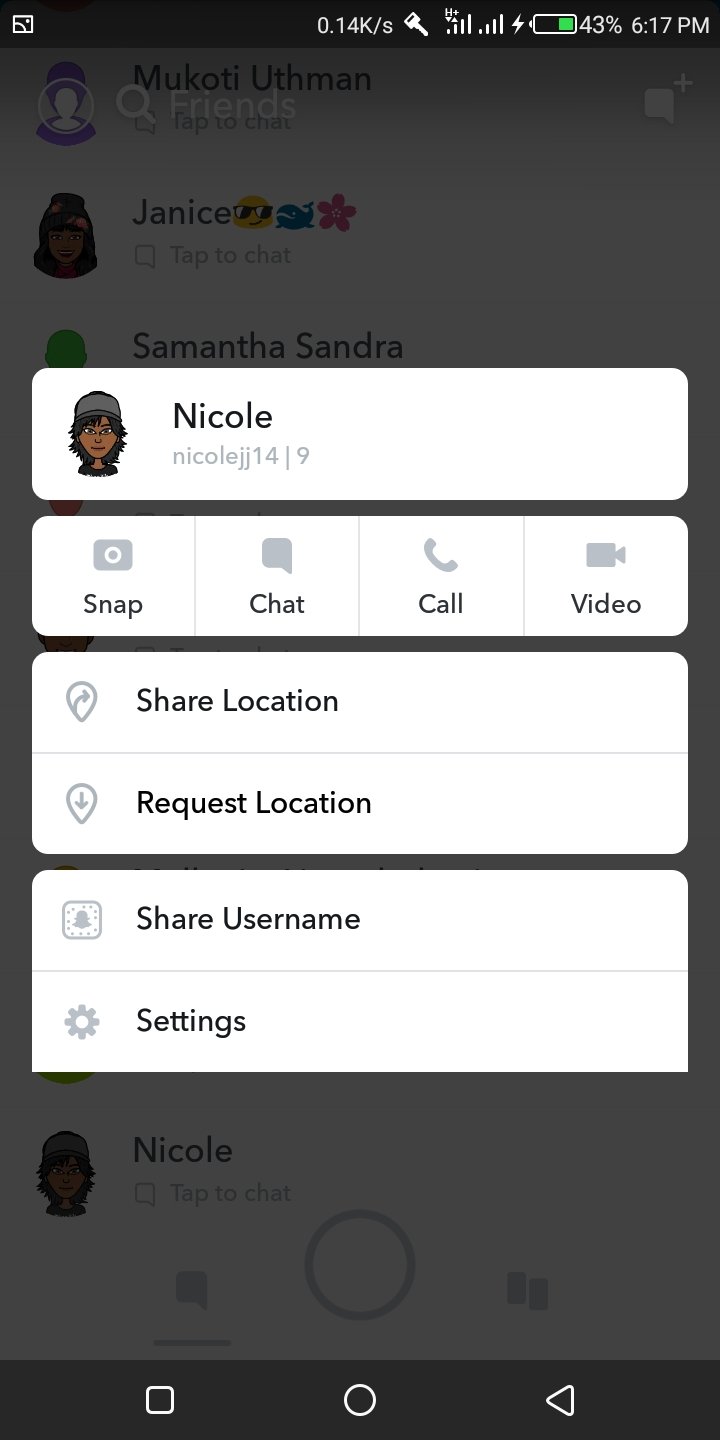
Tap Remove Friend. This option is near the bottom of the menu.
Tap Remove when prompted. Doing so confirms your decision and deletes the selected person from your Snapchat Friends list.
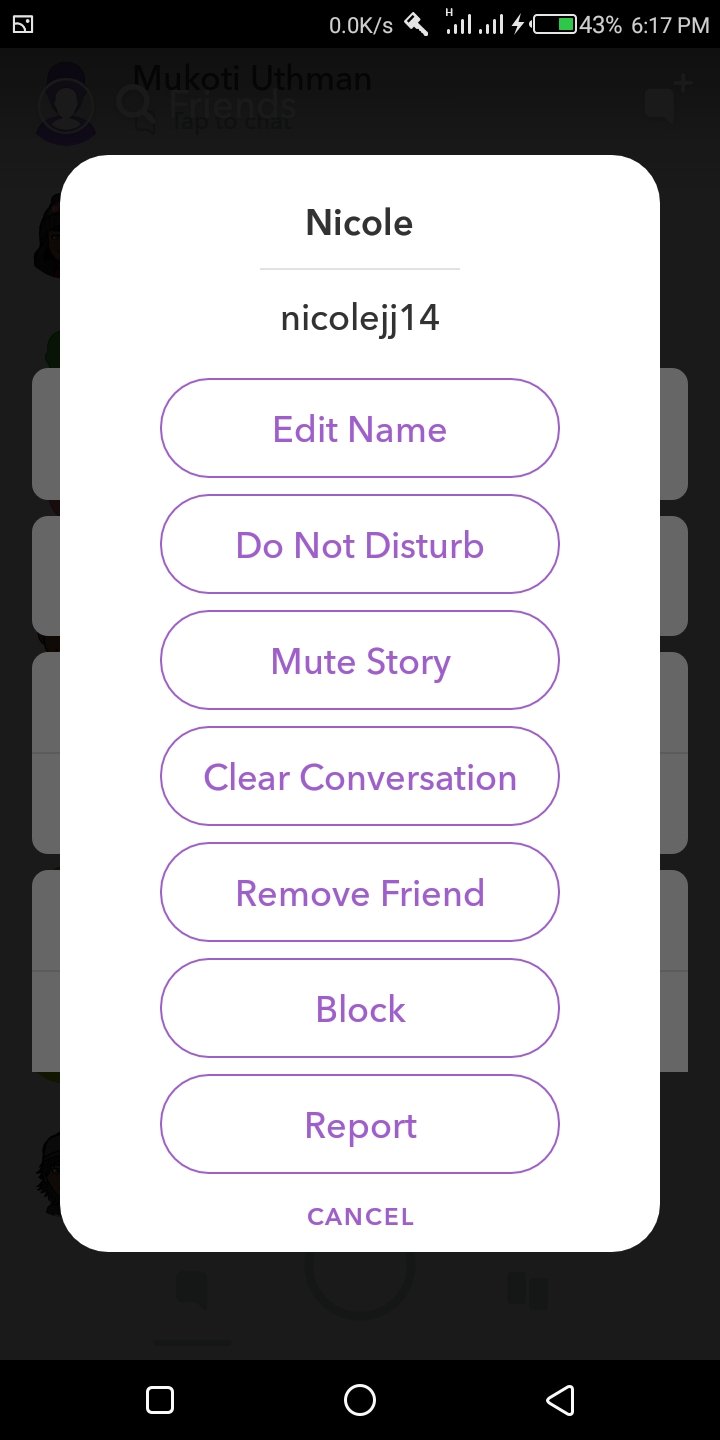
On Android, tap Yes when prompted.
Block a friend if necessary. While deleting a friend is enough to keep them from contacting you or seeing your posts on Snapchat, they’ll still be able to see that you have an account. If you want to hide your entire Snapchat presence from the friend, do the following:
Find the name of the friend you want to block.
Long-press the friend’s name until a menu appears.
Tap Block in the menu.
Tap Block (iPhone) or Yes (Android) when prompted.
With this guide, adding and removing friends on Snap Chat is simplified. You can go on ahead and enjoy the social media messaging platform.
Victor Immanuel Oloo is a tech writer based in Kampala, Uganda, with extensive experience in web 2.0 technologies, social media, and digital marketing. He covers the latest in mobile apps, smartphone reviews, and tech news, offering insightful analysis on the ever-evolving tech landscape. Victor’s deep understanding of both local and global trends provides readers with relevant, informed perspectives on how technology is shaping our world.
Type your email…
Talkio Mobile , Uganda’s newest telecommunications service provider, is excited to announce a groundbreaking partnership with Banana Life Investments, a leading chain of mobile phone and retail shops. This strategic alliance aims to bring Talkio’s innovative telecom services closer to Ugandans.
This collaboration will leverage Banana Life Investments’ extensive retail network of 26 stores strategically located across Uganda in major malls, towns, and cities to provide customers with unparalleled convenience. Through this partnership, Talkio Mobile will offer its full suite of services, including SIM cards, airtime, and exclusive product offerings at any Banana Life Investment location.
This partnership is more than a business initiative—it’s a shared commitment to transforming lives. By integrating Talkio Mobile’s forward-thinking services & nationwide reach with Banana Life Investments’ retail footprint, the two brands are setting a new standard for customer convenience and inclusivity.
READ ALSO: 5 Things You Need to Know About Talkio Mobile: New Telecom Company in Uganda
“This partnership aligns perfectly with our mission of connecting Ugandans to innovative and transformative telecom solutions,” said Vianne Allan Ahura, CEO of Talkio Mobile. “By leveraging Banana Life Investments’ trusted presence and nationwide footprint, we are not only expanding our agent network but also bringing our services closer to the communities we serve. This collaboration ensures that our online customers can now enjoy a seamless offline experience right at their doorstep. Together, we are empowering Ugandans with the tools they need to stay connected, grow their businesses, and unlock new opportunities.”
Solomon Ssemuyaba, the assistant general manager at Banana Life Investments, echoed this sentiment: “We are proud to join hands with Talkio Mobile to deliver innovative, customer-centric solutions. This partnership represents our shared vision of fostering a connected future for Uganda. Together, we are redefining what convenience and accessibility mean for our customers.”
The partnership goes beyond retail distribution, introducing joint initiatives aimed at value addition and personalized service. Customers can expect seamless access to:
- SIM Card Sales : Available at all Banana Life Investments locations.
- Talkio phone number bookings : Book your preferred Talkio number at any Banana Life Investments location.
- Airtime Services : Recharge easily through in-store purchases.
- Customer Support : Friendly and knowledgeable staff trained to assist with Talkio Mobile products and services.
Additionally, the two companies plan to launch promotional campaigns and expand services to even more locations, ensuring no Ugandan is left behind in the digital transformation.
Solomon Obwot is a tech writer based in Kampala, Uganda, with extensive experience in the local tech startup ecosystem. He covers the latest news and analysis on consumer tech, writes in-depth smartphone reviews, and conducts insightful interviews with industry experts. Solomon is also a passionate podcaster, sharing his knowledge and engaging in discussions about Africa’s rapidly growing tech landscape. Send emails to [email protected]
Type your email…
The Mobile World Congress (MWC) Barcelona , the world’s largest exhibition for the mobile industry, has just concluded. This annual event gathers leading technology brands to unveil groundbreaking mobile, AI, and digital solutions innovations. At MWC 2025, TECNO showcased a range of AI-driven products, reinforcing its commitment to cutting-edge technology.
The key launches included:
- CAMON 40 Series – AI-powered smartphones with One-Tap FlashSnap and advanced mobile imaging features.
- MEGABOOK S14 – The world’s lightest 14-inch OLED laptop, featuring AI-enhanced multitasking and Snapdragon® X Elite.
- MEGABOOK T14 Air & K15S – Lightweight ultrabooks with AI capabilities and extended battery life.
- TECNO AI Glasses Series – Smart eyewear integrating AI imaging, translation, and AR display.
Jan Stryjak, Associate Director at Counterpoint Research, shared, “In the past year, we have observed significant advancements in the field of AI. AI will continue to drive transformative changes in our daily lives. In this critical period for the economic development of emerging markets, TECNO’s AI technologies are unlocking potential for diverse needs.”
“The application of AI technologies is crucial and urgent in emerging markets. We’re committed to bridging the digital gap between emerging and mature markets,” said TECNO CMO, Laury Bai. “TECNO is taking a practical approach to make AI more accessible, ensuring users in emerging markets can access AI and cutting-edge technologies.”
Laury Bai, TECNO CMO
Driven by its commitment, TECNO has forged a robust partnership with MediaTek, establishing a joint AI laboratory dedicated to accelerating advancements in AI. At the event, James Chen, Vice President of Product and Technology Marketing at MediaTek, emphasized, “The synergistic R&D efforts between TECNO and MediaTek are set to democratize AI technology. Our collaboration powers a seamless, interconnected AI experience, bringing users a future of truly connected intelligence.”
James Chen, Vice President, Product and Technology Marketing at MediaTek
CAMON 40 Series Powered by AI One-Tap FlashSnap Revolutionizes Smartphone Snapshot Photography
TECNO’s Global Product Launch Officer, Olivier Mas, officially unveiled TECNO’s next-generation AI-driven products. Attendees at TECNO’s launch event witnessed the highly anticipated debut of TECNO’s new CAMON 40 Series, a device that embodies TECNO’s legacy of excellence in mobile imaging. Featuring One-Tap FlashSnap Mode and TECNO AI, the series sets a new benchmark in smartphone photography, delivering exceptional snapshot capabilities and AI-enhanced user experiences.
Olivier Mas, TECNO Global Product Launch Officer
The CAMON 40 Series exemplifies a commitment to innovation that transcends hardware and software, extending into strategic partnerships that deliver cutting-edge AI solutions to emerging markets. Matt Waldbusser, Managing Director of Global Solutions and Consumer AI at Google Cloud, remarked, “Our collaboration with TECNO on the CAMON 40 Series is a standout example. Leveraging Google Cloud’s capabilities, we’ve introduced groundbreaking features such as Ask Ella, AI Image Generator, AI Writing, and AI Translate. I am particularly impressed by the industry-leading and competitive edge of some of these innovations. For instance, TECNO’s AI supports text translation in 136 languages, voice translation in 44 languages, and photo translation in 51 languages. We are excited to further strengthen our partnership with TECNO, unlocking limitless potential to bring advanced yet practical AI capabilities to emerging markets in a convenient and secure manner.”
Matt Waldbusser, Managing Director of Global Solutions and Consumer AI at Google Cloud
The CAMON 40 Series’ innovative One-Tap FlashSnap leverages AI to enhance imaging capabilities, revolutionizing mobile photography. AI optimizes camera startup and continuous shooting for instant captures, while AI-powered multi-frame processing intelligently reduces noise and enhances details, delivering sharper, more refined images. Additionally, the BestMoment algorithm analyzes motion patterns, automatically selecting the optimal frames for precise, high-quality shots in dynamic scenarios, ensuring users an unparalleled mobile imaging experience.
TECNO CAMON 40 Demonstrates the Cutting-Edge FlashSnap Capability
To delve deeper into the imaging prowess of the CAMON 40 Series, TECNO invited Frédéric Guichard, CEO of DXOMARK, to share the image performance of CAMON 40 Pro. Frédéric highlighted, “The CAMON 40 Pro 5G has demonstrated exceptional imaging and performance capabilities in our rigorous evaluations. We’ve been particularly impressed with photo performance being the best for devices under 600$, and the 1st eligible device to our Smart Choice Label.”
Onsite photo of Frédéric Guichard, CEO of DXOMARK
Beyond its advanced rapid-capture functionality, the integration of TECNO AI further enhances the device’s capabilities. Intelligent imaging, a 360° AI Call Assistant, and productivity tools elevate creativity and efficiency. Powered by MediaTek’s latest chipsets, the series ensures smooth performance, fast processing, and extended battery life. With a sleek, durable, and water-resistant design, it seamlessly blends style with practicality for modern users.
MEGABOOK S14, the World’s Lightest 14-inch OLED Laptop, Inspires Creators and Game Lovers
The MEGABOOK S14 is TECNO’s first OLED laptop and the industry’s lightest 14-inch OLED laptop, featuring a 2.8K OLED display and incredibly weighing only 899g (31.7oz). The laptop is equipped with the outstanding power of the Snapdragon® X Elite compute platform, the flagship chipset for AI PCs from Qualcomm Technologies, and integrates TECNO’s world’s first self-developed edge-side large-scale AI model, to achieve AI-enhanced multitasking.
World’s Lightest 14-inch Laptop MEGABOOK S14
Specifically designed for next-gen AI productivity, TECNO AI enhances the Ella AI Assistant, AI-powered PPT generation, AI-driven image search, smart albums, and offline meeting transcription with multilingual support. The External Graphics Dock, equipped with a powerful NVIDIA graphic card, delivers scalable, high-performance capabilities for design, gaming, and content creation. The laptop’s 2.8K OLED display with a 120Hz refresh rate ensures exceptional visuals, while DTS:X Ultra dual 2W speakers, Wi-Fi 6E, fingerprint login, and PC Manager optimize connectivity and user experience.
TECNO’s strategic partnership with Qualcomm Technologies was a highlight of the TECNO AI Ecosystem Product Launch event, demonstrating a shared vision for the future of AI PCs. Kedar Kondap, SVP & GM of Compute and Gaming at Qualcomm, took the stage to discuss the integration of Qualcomm’s cutting-edge PC chipset into the new MEGABOOK S14 laptop, underscoring TECNO’s commitment to delivering high-performance computing solutions.
Kedar Kondap, SVP & GM of Compute and Gaming at Qualcomm
In addition, TECNO also introduced several standout new products. The featherlight 999g (35.2oz) ultrabook MEGABOOK T14 Air, features high-speed storage and LPDDR5 memory, while the ultra-thin, all-metal MEGABOOK K15S, equipped with a powerful 70Wh battery and supported by a 65W PD GaN charger, offers a smarter and more long-lasting user experience. Both devices are empowered by TECNO AI with advanced AI capabilities such as AI Album and AI Voice Assistant, making them perfect companions for all aspects of life.
The Next Game-Changing Tech Innovation: See the World with the TECNO AI Glasses Series
TECNO’s new AI Glasses Series also took center stage with the introduction of TECNO AI Glasses Pro and TECNO AI Glasses, reimagining eyewear with cutting-edge imaging, intelligent interactions, and a sleek aesthetic. The TECNO AI Glasses feature an aviator design, while the Pro model showcases a browline style, both embodying timeless elegance and modern fashion.
TECNO AI Glasses Redefine the Way People See the Future
Equipped with a 50MP high-definition camera, the series integrates an OV50D sensor, a 100° ultra-wide-angle custom lens, and an AI ISP imaging chip, forming a mobile-grade imaging system. This system lets users capture stunning, high-resolution photos with advanced AI noise reduction and HDR capabilities. With real-time translation supporting over 100 languages, TECNO AI’s Ella empowers accurate translation even for less common languages, as well as voice control, AI-powered object recognition, and intelligent information summaries for ultimate convenience.
Additionally, the AI Glasses Pro features a MicroLED display with 7th-gen resin waveguide technology, offering a 30° field of view, over 1,500 nits of brightness AR display, and a lightweight, ultra-thin design. The AR display allows users to effortlessly enjoy features like translation display, navigation, information prompts, and teleprompting.
Equipped with a 250mAh battery, these glasses offer over 11 hours of music playback and 8 hours of mixed use with just 30 minutes of charging. An advanced ultra-linear speaker, bass enhancement, and spatial sound deliver an immersive audio experience, while Wi-Fi 6 and Bluetooth 5.4 ensure seamless connectivity.
With these innovative launches, TECNO is setting new standards in mobile imaging and AI-enhanced technology, shaping a more connected and empowered future for consumers in emerging markets. Once again, TECNO has showcased its cutting-edge innovation on the global stage at MWC. With the brand essence of “Stop at Nothing”, TECNO’s relentless pursuit of innovation is making AI-powered technology more accessible, allowing consumers to experience the future ahead of time.
Solomon Obwot is a tech writer based in Kampala, Uganda, with extensive experience in the local tech startup ecosystem. He covers the latest news and analysis on consumer tech, writes in-depth smartphone reviews, and conducts insightful interviews with industry experts. Solomon is also a passionate podcaster, sharing his knowledge and engaging in discussions about Africa’s rapidly growing tech landscape. Send emails to [email protected]
Type your email…
